La caja Avista (mini PC en su local) recibe el video de sus cámaras y lo analiza localmente con inteligencia artificial: personas, vehículos, puertas, placas.
Cuando pasa algo que usted configuró (una persona en el local fuera de horario, un carro en un puesto reservado, la puerta que se abre), le llega una alerta por WhatsApp con foto y video corto, y en intrusiones también una llamada por Telegram.
El video no sale a la nube: solo se envían las alertas. Si se va el internet del local, la caja sigue detectando y registrando; las alertas se envían cuando vuelve la conexión.
La caja arranca sola después de un corte de luz (en unos 20 segundos) y se vigila desde nuestro centro de monitoreo: si deja de responder, nosotros lo sabemos.
2. Accesos y pantallas
Todas las pantallas viven en su caja. Dentro del local use la IP local; fuera del local instale Tailscale (le enviamos la invitación) y use la IP 100.x.x.x. El token se lo entrega Brightech: guárdelo como contacto o nota, no lo comparta.
Pantalla
Dirección
Para qué
Panel
http://IP:8091/app?token=…
Menú principal: cámaras, reglas, en vivo, forense.
En vivo
http://IP:8091/vivo
Mosaico de todas las cámaras. Botón HD abre una cámara en máxima calidad.
Reglas
http://IP:8091/rules
Horarios, cámaras y zonas de cada regla; interruptor para activar/desactivar.
Cámaras
http://IP:8091/cams
Agregar o probar cámaras. Al terminar: Aplicar y reiniciar.
Foto forense
http://IP:8091/forense
Captura en alta resolución; toque una zona (placa, rostro) y la IA la amplía y mejora.
Comercios
Panel de estacionamiento → pestaña Comercios
Solo centros comerciales: validaciones, placas gratis, reporte mensual.
Use Chrome o Edge actualizados (también en el celular). Safari antiguo puede no mostrar el video en vivo.
3. Cámaras y grabador (NVR)
Avista trabaja con sus cámaras actuales (Dahua, Hikvision, Swann, ONVIF…). Usa el flujo secundario (sub-stream) para analizar y el principal solo para la foto HD.
Configuración recomendada del sub-stream en el NVR: 704×480, 10 cuadros por segundo. Más cuadros no mejoran la detección y cargan la caja.
H.264 o H.265 funcionan. Si el video en vivo se ve negro con sonido, el navegador es viejo: actualice Chrome/Edge.
El número de canal del NVR no siempre coincide con el nombre que ve en la pantalla del grabador. Al agregar una cámara pulse Probar y nombre la cámara por lo que se ve (bodega, caja, portón…).
Mantenga el NVR con la hora correcta (active NTP). Si mueve una cámara, avísenos: las zonas de las reglas se dibujan sobre la imagen.
3.1 Dónde se escriben el usuario y la contraseña del grabador
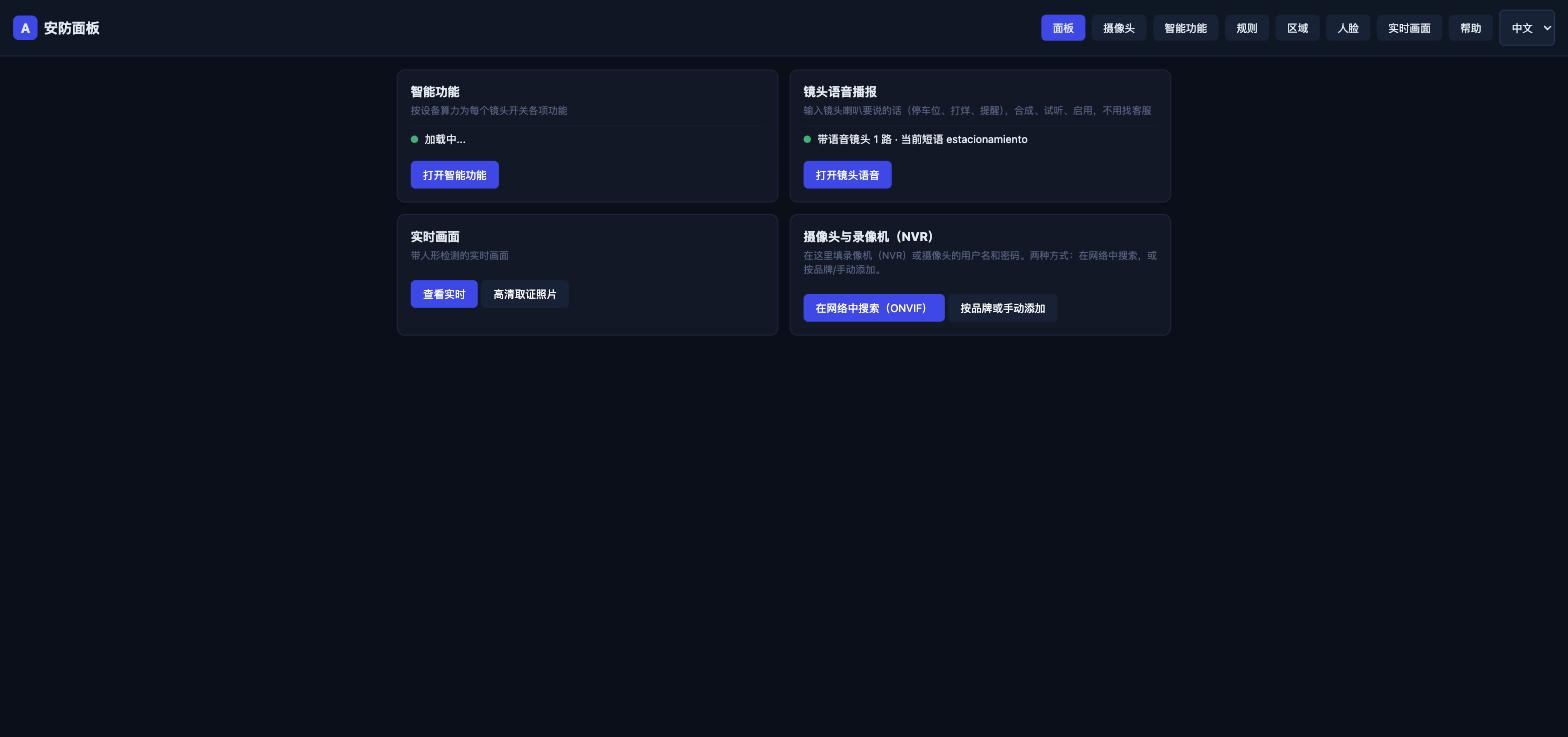
En el panel de configuración de la caja (http://IP-de-la-caja:8091/panel?token=…) entre a Cámaras (pestaña superior o la tarjeta «Cámaras y grabador (NVR)» del Panel). Hay dos formas de agregar:
Panel → tarjeta «Cámaras y grabador (NVR)»: dos botones, uno por cada forma.
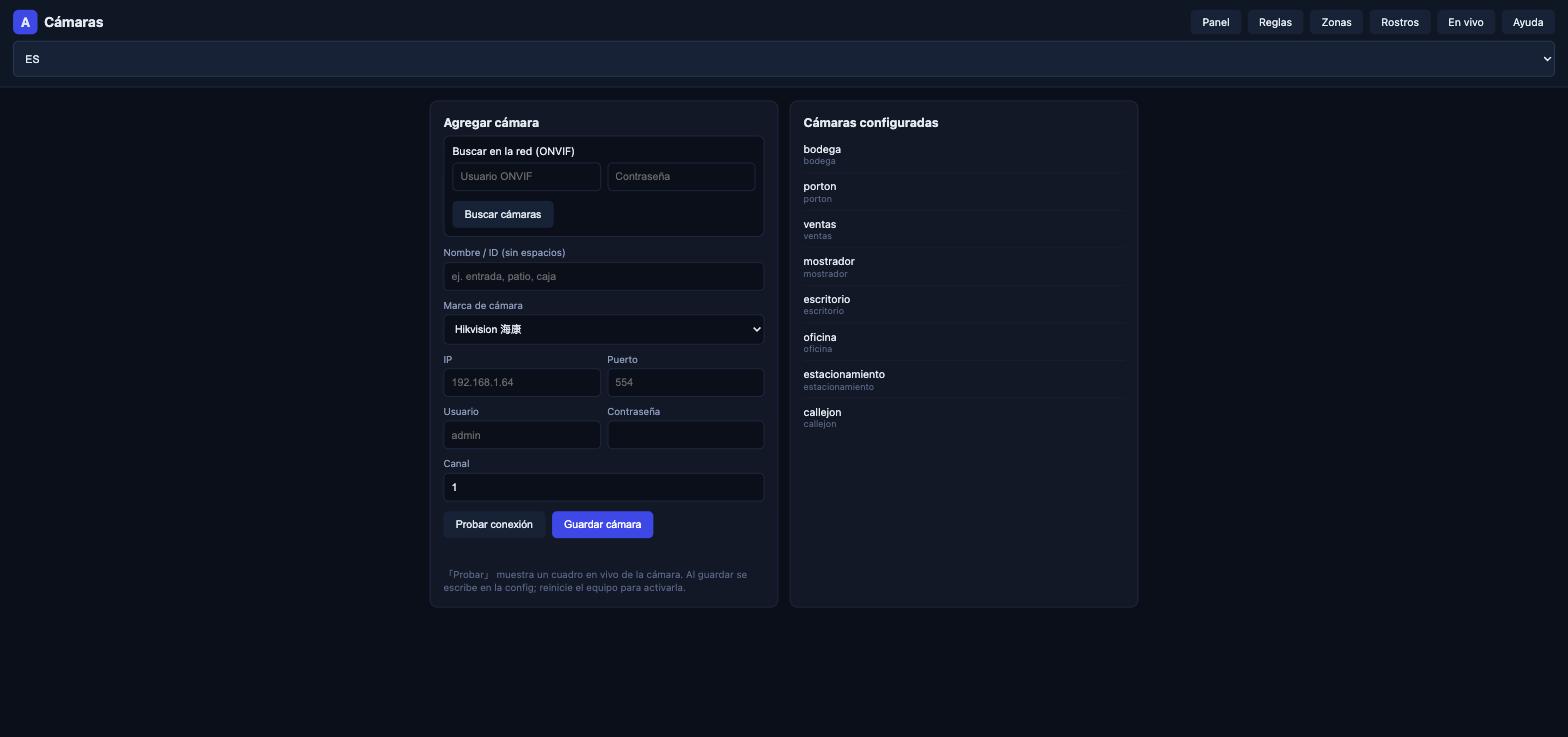
Forma A — Buscar en la red (ONVIF)
En el recuadro Buscar en la red (ONVIF) escriba el usuario y la contraseña del grabador (los mismos con los que entra al NVR).
Pulse Buscar cámaras. Si el grabador anuncia sus canales por ONVIF, aparecen en una lista: toque uno y los datos se copian al formulario de abajo.
Muchos grabadores no anuncian sus canales (sale «Sin cámaras ONVIF»). No es un error: use la Forma B.
Forma B — Por marca (la más usada)
Nombre / ID: cómo quiere llamar a esa cámara, sin espacios (bodega, caja, porton).
Marca de cámara: la marca del grabador (Dahua, Hikvision, Swann, Uniview, TP-Link, Reolink, Ezviz, Imou). Si no está, elija Manual y pegue la URL RTSP completa.
IP del grabador y Puerto (normalmente 554).
Usuario y Contraseña del grabador.
Canal: el número del canal en el NVR.
Pulse Probar conexión: debe aparecer la imagen de esa cámara. Si sale «Sin conexión», revise IP / usuario / contraseña / canal.
Pulse Guardar cámara y después Aplicar y reiniciar (la detección se reinicia en ~1 minuto; las cámaras siguen grabando en el NVR).
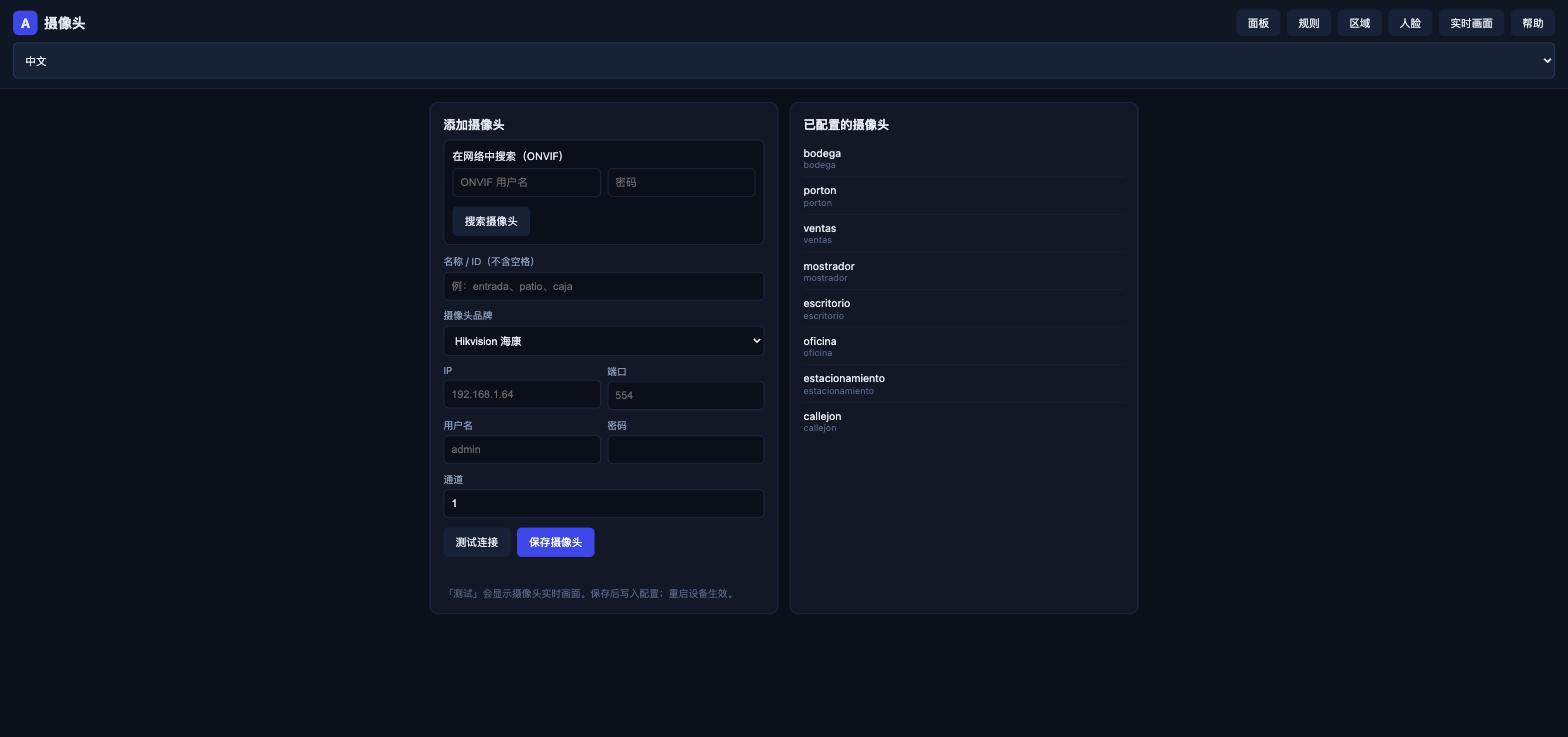
Pantalla Cámaras: arriba la búsqueda ONVIF, abajo el formulario por marca con usuario, contraseña y canal.
Un grabador de 8 canales son 8 cámaras: misma IP, mismo usuario y contraseña, solo cambia el Canal y el nombre.
Las credenciales quedan solo en la caja (config.yaml / go2rtc.yaml); no se suben a la nube.
Si la pantalla dice «Token inválido», abra el enlace con ?token=… que le entregamos (está en la tarjeta del cliente) y vuelva a cargar.
4. Reglas, horarios y zonas
Una regla = qué cámaras + qué horario + qué zona. La regla típica de comercio es "Local cerrado (noche)": cámaras interiores, de 20:00 a 07:30, toda la imagen.
Las cámaras que ven la calle o un callejón público no van en la regla nocturna: la gente pasa y generaría alertas todo el tiempo. Para ellas use zonas pequeñas (su entrada, su estacionamiento).
Zona = polígono donde se cuenta la persona por donde pisan los pies. Excluya estantes, cajas apiladas y vitrinas: los objetos con forma humana a media luz son la primera causa de falsas alarmas.
Los cambios en /rules se aplican en segundos sin reiniciar. Para probar de día active la regla "PRUEBA", camine por la zona y vuelva a apagarla.
Si un empleado entra fuera de horario, le llegará la alerta: es normal. Puede registrar su rostro como conocido para no recibirla.
5. Alertas: WhatsApp, video y llamada
Cada alerta llega con foto (la mejor imagen de la persona) y unos segundos después un video de ~18 s (antes y después del evento). Guarde el número de Avista como contacto.
Intrusión en horario cerrado: además llamada por Telegram (suena 60 s, repite el mensaje 3 veces). Para recibirla, la primera vez debe autorizar CallMeBot: abra api2.callmebot.com/txt/auth.php, pulse Telegram Login, ponga su número y confirme en la app. Si tiene Telegram abierto en la computadora, esa sesión puede "contestar" la llamada antes que el celular.
Entre alertas de la misma cámara hay una pausa (por defecto 2 minutos) para no llenar su chat. Todas quedan registradas en la caja aunque no se envíen.
Sin internet en el local no hay alertas: revise el router. Nuestro monitoreo le avisa por Telegram cuando la caja queda fuera de línea y cuando vuelve.
6. Estacionamiento y comercios
Puestos reservados: cuando un vehículo se estaciona en un puesto vigilado, recibe foto por WhatsApp y un mensaje en Telegram con botones ✅ Permitir / 🚨 Alarma. Sin respuesta en 60 s se le recuerda; a los 120 s suena la sirena 10 s. Si pulsa Alarma, suena 30 s. Funciona en el horario que usted definió (por defecto 18:00–08:00).
Centro comercial (validación de comercios): cada comercio recibe un enlace + PIN. En su celular escribe los últimos 4 caracteres de la placa del cliente, ve el vehículo con su foto de entrada y pulsa Regalar minutos. El cliente sale sin pagar o paga solo el excedente.
Protecciones: el enlace queda ligado al primer celular que lo abre (otro celular necesita su aprobación en el panel), el PIN no sirve sin ese celular, hay cupo diario por comercio, una placa solo recibe una cortesía por comercio al día y un ticket acepta máximo 2 comercios. El reporte mensual (pestaña Comercios) muestra cuántos minutos regaló cada comercio y su valor.
Modo estricto (opcional): el comercio debe escribir el código de 8 letras que aparece en la página de pago del cliente. Vales impresos de un solo uso para comercios sin celular.
7. Asistencia por cámara
La cámara del portón detecta la apertura del local. La ENTRADA se marca cuando la cámara ve a la persona que entra (no solo la puerta): así el sol por las rendijas del portón no marca entradas falsas.
El cierre de la tarde marca la SALIDA (se toma el último cierre del día). Si el empleado llega tarde, recibe un mensaje privado con los minutos de retraso; los sábados a las 19:00 llega el resumen semanal.
Las marcas van a Fichale con foto. Si alguna es incorrecta, corríjala en Fichale o avísenos.
8. Mantenimiento y buenas prácticas
No apague la caja ni la use como computadora personal (navegador, escritorio remoto o programas pesados le quitan capacidad a la detección). Si debe reiniciar, apague y encienda: vuelve sola.
Las actualizaciones automáticas de Windows están bloqueadas a propósito: una actualización a media tarde dejó una caja sin vigilancia más de una hora. Las actualizaciones las hacemos nosotros en mantenimiento programado.
Después de cambiar cámaras o de mover la caja a otro local, pulse Aplicar y reiniciar en /cams. Si tiene dos locales, use los accesos directos AVISTA-CASA / AVISTA-OFICINA del escritorio para cambiar de perfil.
Mantenga el router y el NVR conectados por cable. El Wi-Fi es la causa más común de "se cayó el sistema".
Soporte: WhatsApp +507 6951-9368. Envíe la captura de la alerta y la hora: en la caja queda un registro de cada decisión para revisarla.
9. Problemas frecuentes
Síntoma
Qué hacer
El video en vivo no aparece o solo tiene sonido
Actualice Chrome/Edge (H.265 necesita navegador reciente). En celulares antiguos use la app del NVR para ver en vivo.
El mosaico va lento
Es normal con 8 cámaras en celular. Abra una sola con HD cuando necesite detalle.
Alerta falsa (nadie estaba)
Envíenos la foto: casi siempre es un objeto con forma humana o luz cambiante; ajustamos la zona o la sensibilidad.
No llegan alertas
Revise el internet del local y que WhatsApp no tenga bloqueado el número de Avista. Nuestro monitoreo le avisa si la caja está fuera de línea.
"Puerta abierta" sin haber abierto
Sol o luz entrando por las rendijas. La cámara del portón está calibrada con plantillas de noche y de día; si vuelve a pasar, envíenos la hora.
Marcó entrada a una hora incorrecta
La entrada se marca cuando se ve a la persona. Corrija en Fichale y avísenos para revisar la cámara.
Lee mal las placas
Limpie el lente, evite contraluz y asegúrese de que la placa ocupe al menos 1/6 del ancho de la imagen.
Avista es un producto de Brightech Inc, Panamá. Guía actualizada 2026-09.
Avista User Guide
Everything you need to run your system day to day: cameras, alerts, rules, parking, attendance and maintenance. Save it on your phone.
The Avista box (a mini PC on site) receives your camera video and analyses it locally with AI: people, vehicles, doors, plates.
When something you configured happens (a person inside after hours, a car in a reserved spot, the door opening) you get a WhatsApp alert with a photo and a short video, and for intrusions also a Telegram call.
Video never goes to the cloud: only alerts are sent. If the site loses internet the box keeps detecting and logging; alerts go out when the connection returns.
The box restarts by itself after a power cut (about 20 seconds) and is watched by our monitoring: if it stops responding, we know.
2. Access and screens
All screens live on your box. Inside the site use the local IP; from outside install Tailscale (we send the invitation) and use the 100.x.x.x IP. Brightech gives you the token: keep it as a note, don't share it.
Screen
Address
Purpose
Panel
http://IP:8091/app?token=…
Main menu: cameras, rules, live, forensic.
Live
http://IP:8091/vivo
Grid of all cameras. HD opens one camera at full quality.
Rules
http://IP:8091/rules
Schedules, cameras and zones per rule; switch to enable/disable.
Cameras
http://IP:8091/cams
Add or test cameras. When done: Apply and restart.
Forensic photo
http://IP:8091/forense
High-resolution capture; tap an area (plate, face) and AI enlarges and enhances it.
Use up-to-date Chrome or Edge (also on the phone). Old Safari may not show live video.
3. Cameras and recorder (NVR)
Avista works with your existing cameras (Dahua, Hikvision, Swann, ONVIF…). It analyses the sub-stream and uses the main stream only for the HD photo.
Recommended sub-stream settings on the NVR: 704×480, 10 frames per second. More frames don't improve detection and load the box.
H.264 and H.265 both work. If live video is black with sound, the browser is old: update Chrome/Edge.
The NVR channel number does not always match the name shown on the recorder screen. When adding a camera press Test and name it by what you see (warehouse, till, gate…).
Keep the NVR clock correct (enable NTP). If you move a camera, tell us: rule zones are drawn on the image.
3.1 Where to enter the recorder's user and password
In the box's configuration panel (http://BOX-IP:8091/panel?token=…) open Cámaras (top tab, or the “Cámaras y grabador (NVR)” card on the Panel). There are two ways to add:
Panel → “Cámaras y grabador (NVR)” card: one button per method.
Method A — Search the network (ONVIF)
In the Buscar en la red (ONVIF) box type the recorder's user and password (the ones you log into the NVR with).
Press Buscar cámaras. If the recorder announces its channels over ONVIF they show up in a list: tap one and the data is copied into the form below.
Many recorders do not announce their channels (“Sin cámaras ONVIF”). That is not an error: use Method B.
Method B — By brand (most common)
Name / ID: what you want to call that camera, no spaces (bodega, caja, porton).
Camera brand: the recorder's brand (Dahua, Hikvision, Swann, Uniview, TP-Link, Reolink, Ezviz, Imou). Not listed? Choose Manual and paste the full RTSP URL.
Recorder IP and Port (usually 554).
Recorder User and Password.
Channel: the channel number on the NVR.
Press Probar conexión (test): the camera image must appear. If it says no connection, check IP / user / password / channel.
Press Guardar cámara (save) and then Aplicar y reiniciar (detection restarts in ~1 minute; the NVR keeps recording).
Cameras screen: ONVIF search on top, brand form with user, password and channel below.
An 8-channel recorder means 8 cameras: same IP, user and password; only the Channel and the name change.
Credentials stay on the box only (config.yaml / go2rtc.yaml); nothing is uploaded to the cloud.
If the screen says “Token inválido”, open the link with ?token=… we gave you (it is on the customer card) and reload.
4. Rules, schedules and zones
A rule = which cameras + which schedule + which zone. The typical shop rule is "Shop closed (night)": indoor cameras, 20:00 to 07:30, whole image.
Cameras that see the street or a public alley don't belong in the night rule: people walk by and would trigger alerts constantly. Use small zones for them (your entrance, your parking).
Zone = polygon where a person counts by where their feet are. Exclude shelves, stacked boxes and display cases: human-shaped objects in dim light are the number one cause of false alarms.
Changes in /rules apply within seconds, no restart. To test by day enable the "TEST" rule, walk through the zone, then switch it off.
If an employee enters after hours you will get the alert: that's expected. Their face can be enrolled as known so you don't receive it.
5. Alerts: WhatsApp, video and call
Each alert comes with a photo (the best frame of the person) and a few seconds later a ~18 s video (before and after the event). Save the Avista number as a contact.
Intrusion while closed: also a Telegram call (rings 60 s, repeats the message 3 times). To receive it, authorise CallMeBot once: open api2.callmebot.com/txt/auth.php, press Telegram Login, enter your number and confirm in the app. If Telegram Desktop is open on a computer, that session may "answer" the call before your phone.
Between alerts from the same camera there is a pause (2 minutes by default) so your chat isn't flooded. Everything is logged on the box even when not sent.
No internet on site means no alerts: check the router. Our monitoring notifies you on Telegram when the box goes offline and when it is back.
6. Parking and merchants
Reserved spots: when a vehicle parks in a watched spot you get a WhatsApp photo and a Telegram message with ✅ Allow / 🚨 Alarm buttons. No answer in 60 s → reminder; at 120 s the siren sounds for 10 s. Pressing Alarm sounds it for 30 s. Active in the schedule you defined (default 18:00–08:00).
Mall (merchant validation): each merchant gets a link + PIN. On their phone they type the last 4 characters of the customer's plate, see the vehicle with its entry photo and press Gift minutes. The customer leaves without paying or pays only the excess.
Protections: the link binds to the first phone that opens it (another phone needs your approval in the panel), the PIN is useless without that phone, each merchant has a daily quota, a plate gets one courtesy per merchant per day and a ticket accepts at most 2 merchants. The monthly report (Merchants tab) shows minutes gifted by each merchant and their value.
Strict mode (optional): the merchant must type the 8-letter code shown on the customer's payment page. Single-use printed vouchers for merchants without a phone.
7. Camera attendance
The gate camera detects the shop opening. CHECK-IN is recorded when the camera sees the person walking in (not just the door): sunlight through the shutter slats can't create false check-ins.
The evening closing records CHECK-OUT (the last closing of the day). Late arrivals get a private message with the minutes late; on Saturdays at 19:00 the weekly summary arrives.
Records go to Fichale with a photo. If one is wrong, fix it in Fichale or tell us.
8. Maintenance and good practice
Don't switch the box off or use it as a personal computer (browser, remote desktop or heavy programs steal capacity from detection). If you must restart, power off and on: it comes back by itself.
Windows automatic updates are blocked on purpose: a mid-afternoon update once left a box unguarded for over an hour. We apply updates during scheduled maintenance.
After changing cameras or moving the box to another site press Apply and restart in /cams. With two sites, use the desktop shortcuts AVISTA-CASA / AVISTA-OFICINA to switch profile.
Keep the router and NVR on cable. Wi-Fi is the most common cause of "the system went down".
Support: WhatsApp +507 6951-9368. Send the alert screenshot and the time: the box keeps a record of every decision for review.
9. Troubleshooting
Symptom
What to do
Live video missing or sound only
Update Chrome/Edge (H.265 needs a recent browser). On old phones use the NVR app for live view.
Grid is slow
Normal with 8 cameras on a phone. Open a single camera with HD when you need detail.
False alert (nobody was there)
Send us the photo: almost always a human-shaped object or changing light; we adjust the zone or sensitivity.
No alerts arriving
Check site internet and that WhatsApp hasn't blocked the Avista number. Our monitoring tells you if the box is offline.
"Door open" without opening
Sun or light through the slats. The gate camera is calibrated with night and day templates; if it happens again send us the time.
Check-in at the wrong time
Check-in is recorded when the person is seen. Fix it in Fichale and tell us so we review the camera.
Plates misread
Clean the lens, avoid backlight and make sure the plate is at least 1/6 of the image width.
Avista is a product of Brightech Inc, Panama. Guide updated 2026-09.